Run Claude Code, Codex, Antigravity, Cursor, OpenCode and Grok side by side in your projects, with DeepSeek, GLM and Kimi models too. Bring your own subscription. Read every line of the source.
Open a project to see its files, past sessions and changes together. Your AI work stays alongside the relevant files and Git history.
Project and files
Group your projects, browse files and reopen past conversations. Each project keeps its own work history as you switch between them.
Working with an agent
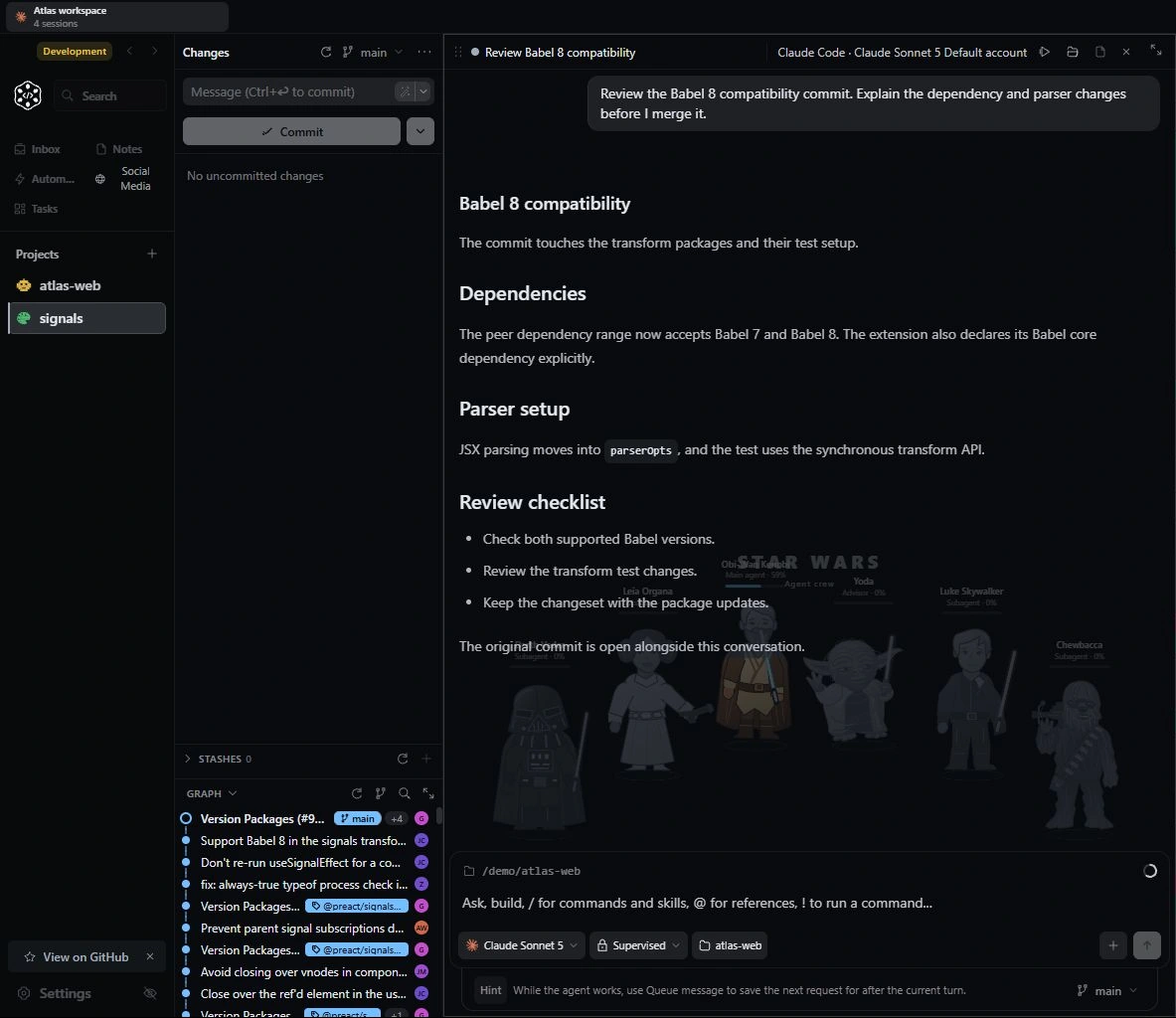
Start a session with Claude Code, Codex or another provider. Choose your account and model, then follow responses, tool activity and file changes in the same interface.
Parallel sessions
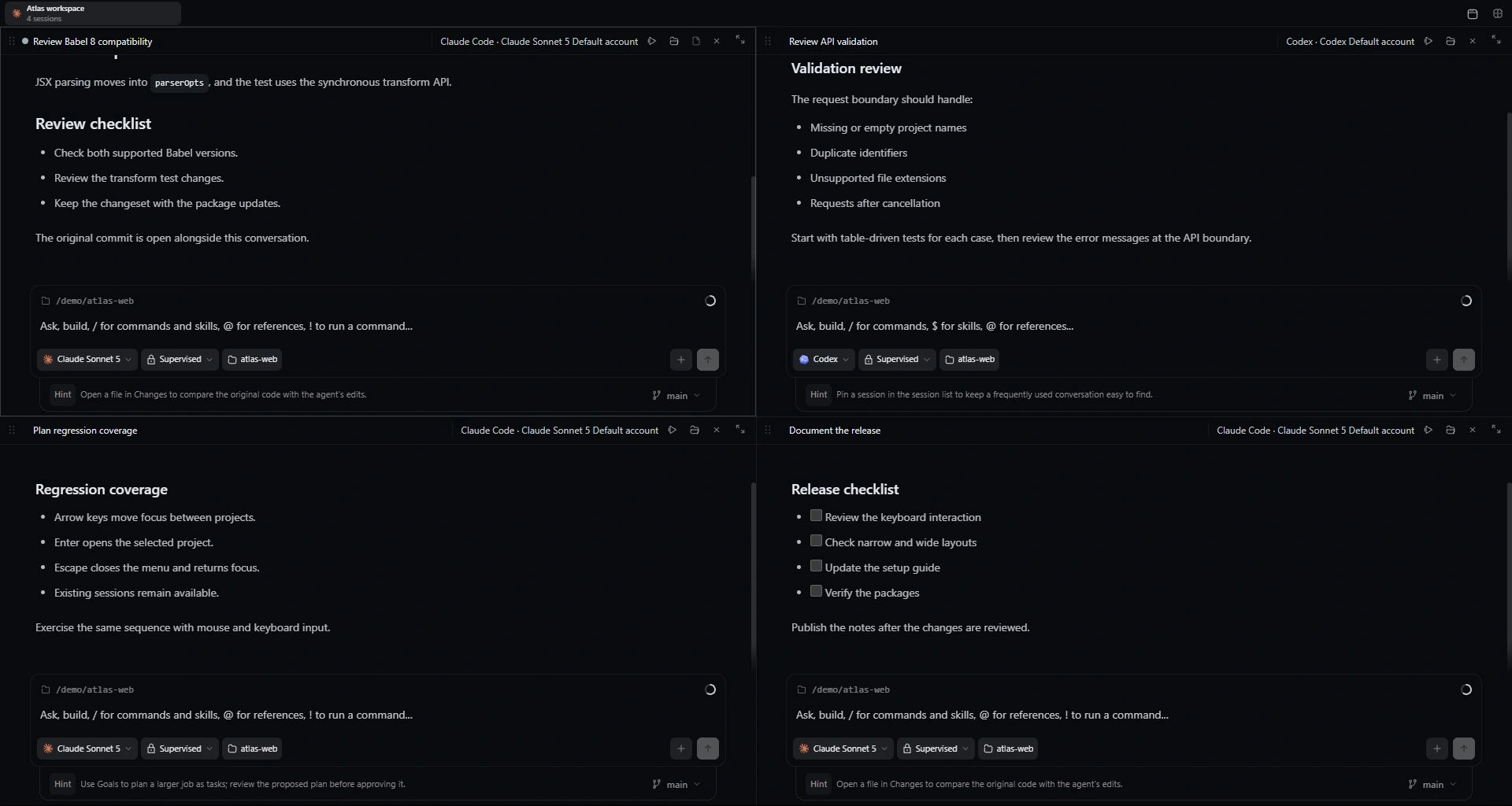
Four agent sessions running side by side in bycoda
Bring your own subscription.
bycoda doesn’t sit between you and your provider. Connect the agent CLIs you already use; model access, plans and fees stay with your provider.
Finds the CLIs on your PATH.
Model, effort and permissions per session.
No resold tokens.
Keep the work around the conversation close.
Follow multiple sessions side by side.
Use different AI tools on one project or work across several projects. In split view, see each session’s responses and status separately.
AgentTaskStatusContext
Claude CodeFix the login redirectRunningRSu(n(nDiFnRgR38%
CodexAdd parser testsNeeds youNOesezd^sPyjogut71%
Gemini CLISimplify the settings screenRunningRSu(n(nDiFnRgR12%
CursorUpdate the READMEReady for reviewRSesavd^yVfQogrqr%eyvKiEeHwg54%
Illustrative. These values are not from a real session.
Remote connections
Connect to another computer over SSH. Open its projects and running sessions from bycoda.
Define the task, follow the result.
Choose the machine and branch for a task. Queue dependencies, open review findings and approve the finished change. Use “Continue until complete” to keep the correction process running.
Technical decisions and working notes.
Filter notes by project and tag. Edit Markdown beside its preview and attach a relevant note to an agent conversation.
Review it, commit it, follow the PR.
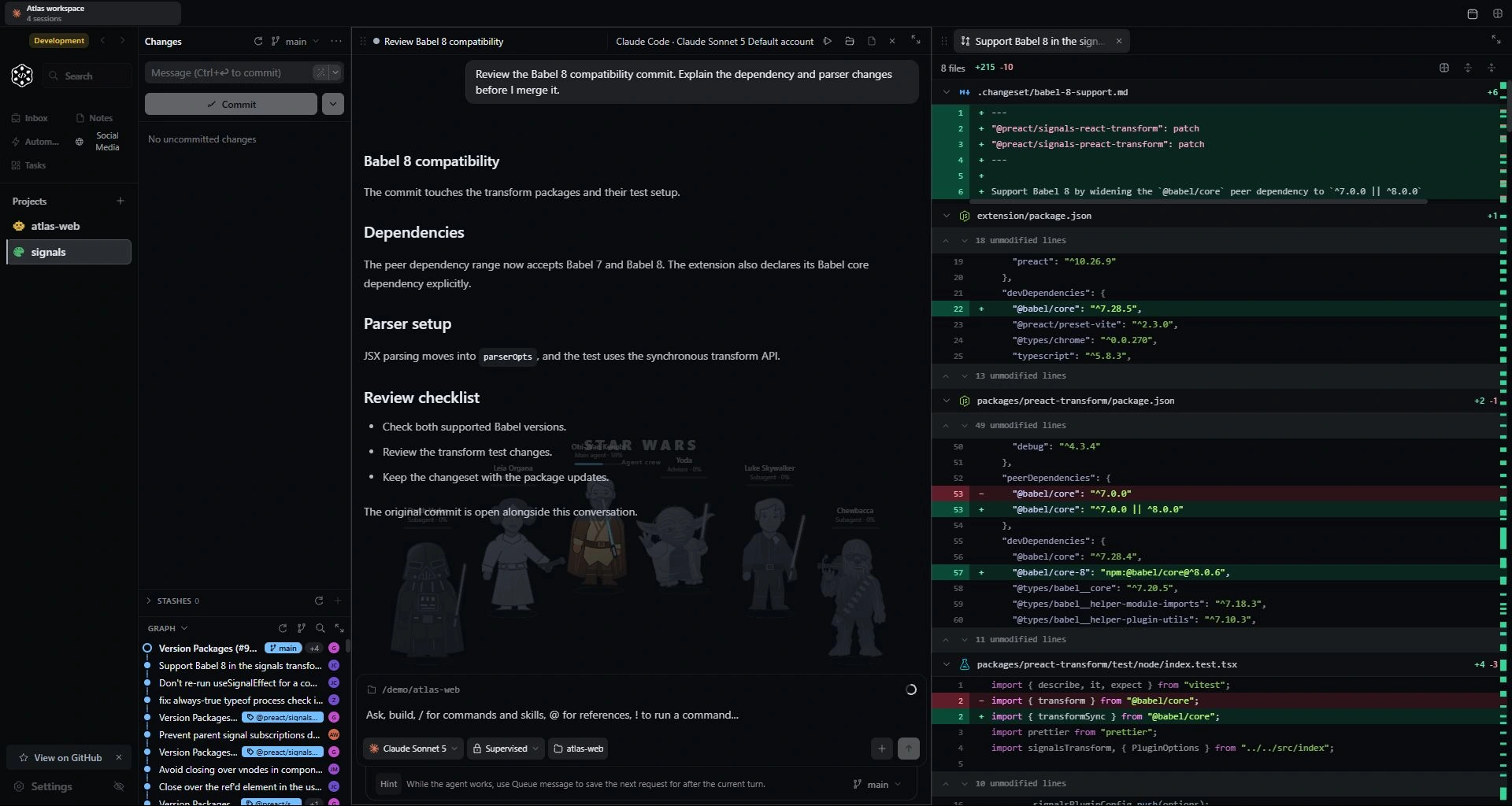
Every change your agent makes sits next to the conversation as a diff. Pick the files you want, write the commit and watch pull request checks and failing CI jobs from the same place.
Line-by-line diff review
Branches and worktrees
Resolve merge conflicts
PR checks and failing CI jobs
Longer chats. Older uncles.
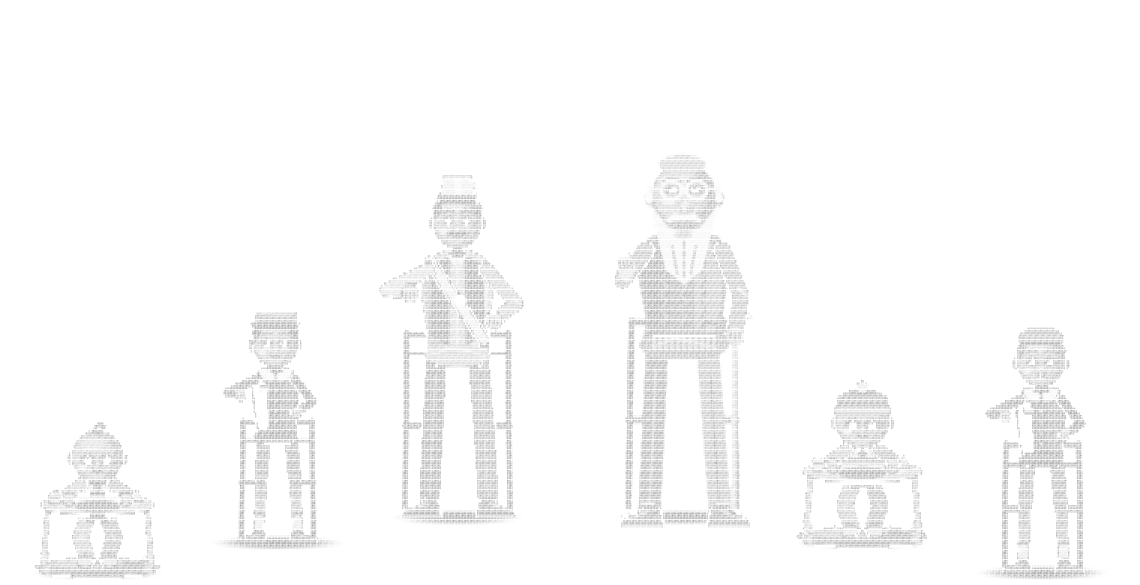
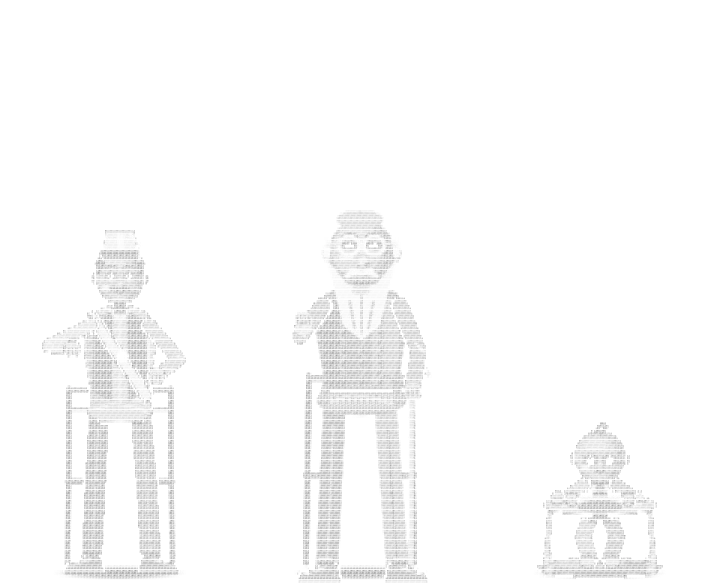
Every conversation builds context. As it fills up, bycoda’s uncle mascots grow from babies into elders. See how much your conversation has grown at a glance.
Adjust the context bars and watch the characters grow.
Subagent 1Baby
Subagent 2Child
Lead agentAdult
AdvisorUncle
Subagent 3Baby
Subagent 4Child
Illustrative demo with independent values. In the app, the advisor shares the lead agent’s context.
A code review every morning. A check when a PR opens. Schedule recurring work or trigger it from project events, then follow the results.
Social media workspace
Prepare product announcements and reply drafts alongside your project. Plan campaigns for connected accounts and publish with your approval or enabled rules.
MCP, skills and templates
Stop rewriting the instructions you use often. Manage prompt templates and agent skills, and connect the tools each session needs through MCP.
Browser and HTML previews
Open the HTML page your agent created and see the result. Browse pages in the connected computer’s shared browser, keeping the conversation and preview together.
Devices and host resources
View and control connected Android and iOS devices beside the conversation. Follow emulators, simulators and host CPU/memory history in the tools workspace. iOS requires a connected Mac.
Jira board
Follow work in Kanban, backlog and sprint views. Move cards or change their status with the keyboard.
Browser and server logs
Watch project logs in one panel. Inspect an error alongside the code and conversation.
Session recovery
Find sessions that need attention in one list. Open a conversation to inspect it; decide separately whether to restart work.
Share a development server
Create a link to your local preview with ngrok or cloudflared. Start and stop sharing from the app.
Integrations depend on account permissions and host setup. The iOS simulator requires macOS and Xcode. Read the details
Give your agents a proper desk.
Free, open source and built for the agents you already pay for. Install it, open a project and give it a first task.





 Claude CodeFix the login redirectRunning38%
 CodexAdd parser testsNeeds you71%
 Gemini CLISimplify the settings screenRunning12%
 CursorUpdate the READMEReady for review54%
 OpenCodeUpgrade dependenciesRunning23%